
Write with MarkFlowy
MarkFlowy is a local-first Markdown editor for macOS, Windows, and Linux. Open the files and folders you already use, write visually or in Markdown source, and add AI only when you need it. Local editing does not require an account or an AI provider.
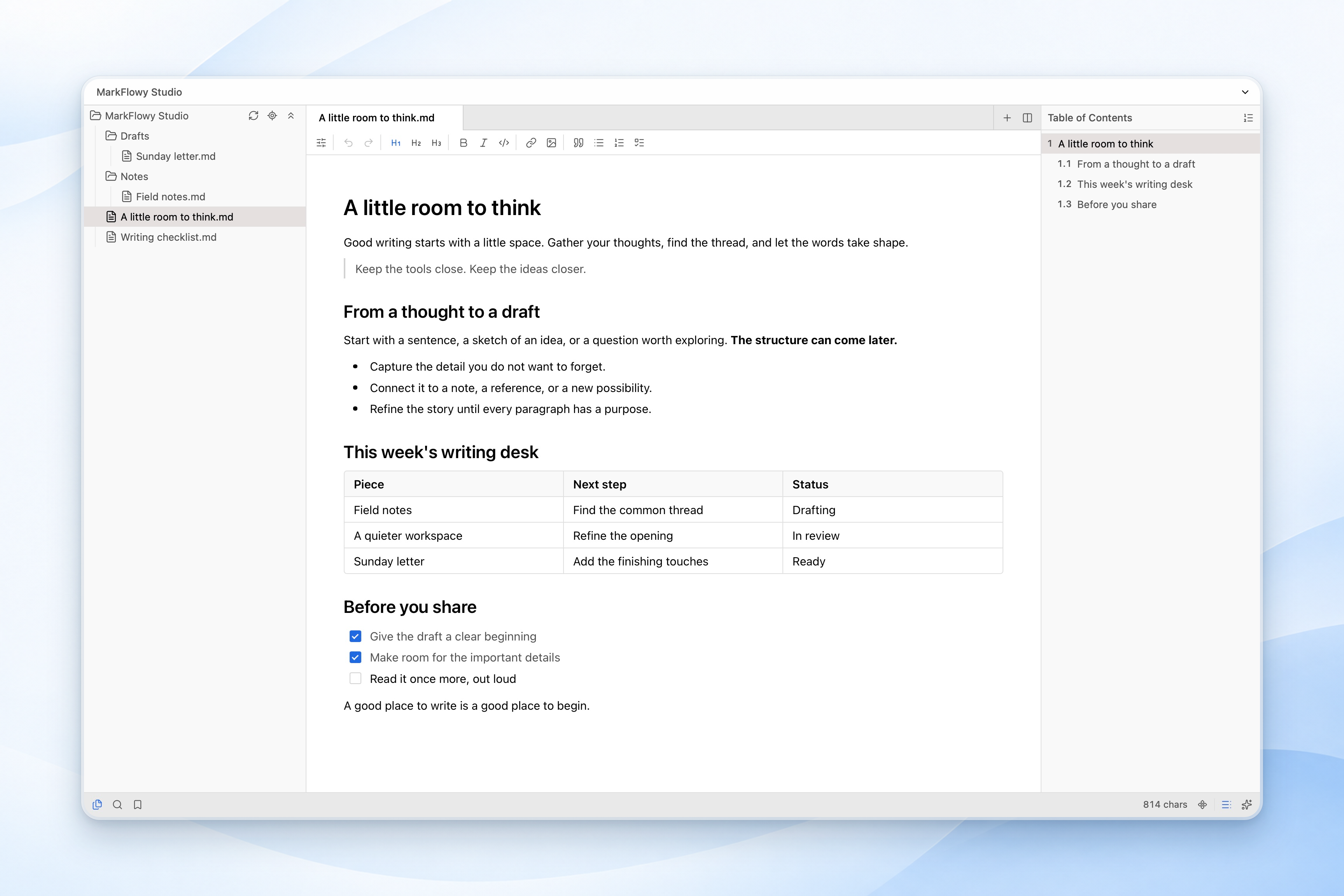
Your first document
- Install the package for your operating system from GitHub Releases.
- Choose Open File for an individual document or Open Folder for a workspace. The open menu in the title bar also lists recent files and workspaces and can open a folder in a new window.
- Create a Markdown document, or select a file in the explorer if you opened a folder. You can also edit text files such as TXT and JSON.
- Write and press Cmd/Ctrl + S to save. Configure autosave and its interval under Settings → General.
Your workspace uses ordinary files. You can choose your own backup and synchronization tools; local editing does not upload every document to a MarkFlowy cloud account.
Start with a single file
For a quick note or a focused draft, open one Markdown file without opening a folder. MarkFlowy automatically uses a compact single-file layout, with no tab row taking space above your document. Click the document name to rename it, and keep using the same visual editing, source mode, local history, and export tools.
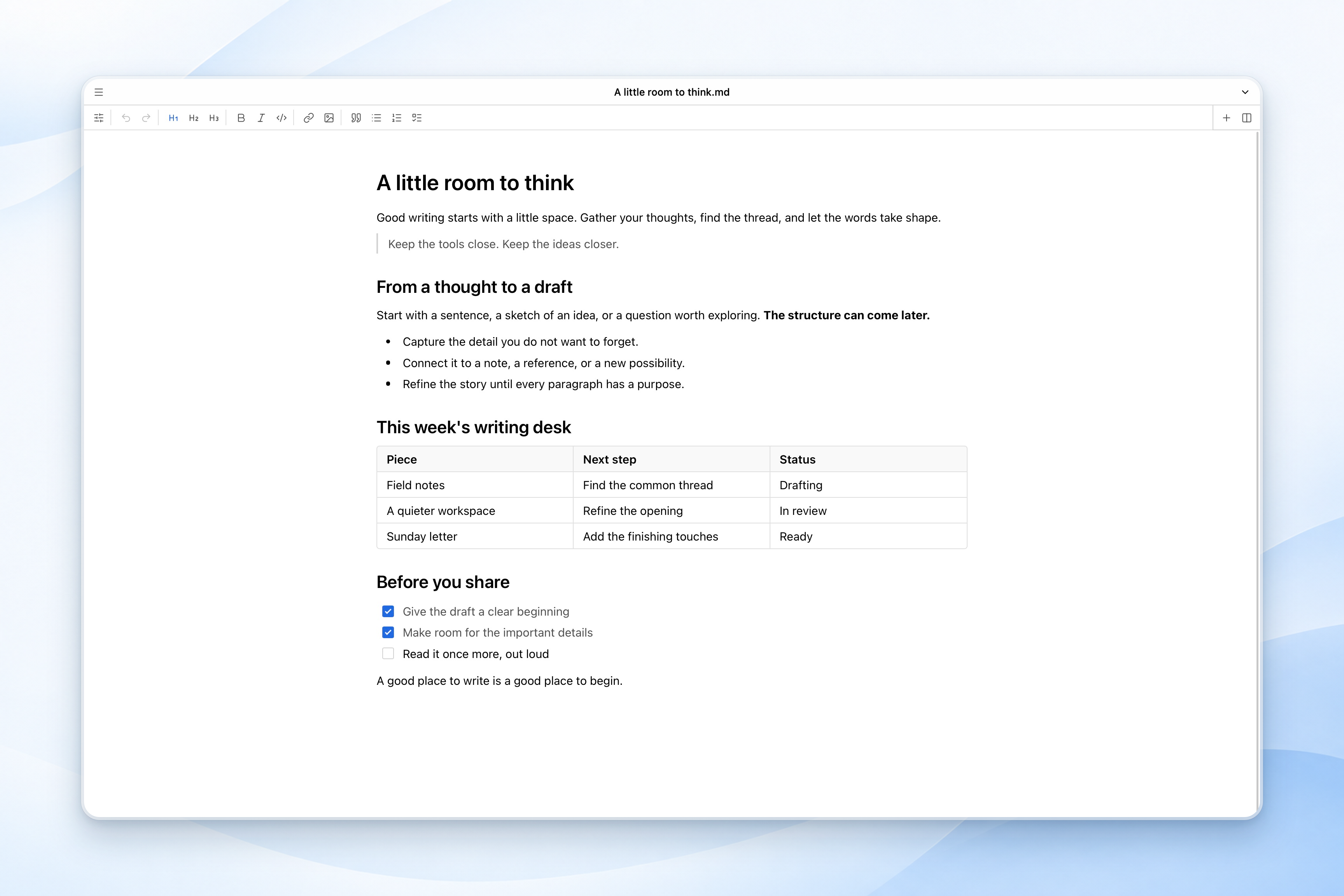
Open another document or split the editor when you need a reference beside your writing; tabs appear automatically. Choose Open Folder when you want a file tree and workspace search for a larger collection. There is no separate mode setting to configure.
If the status bar is hidden while you write in single-file mode, move your pointer to the bottom edge of the window to reveal it and access the outline or bookmarks.
Choose an editing mode
Open More → View in the editor toolbar.
| Mode | Use it for |
|---|---|
| WYSIWYG | Write with formatted headings, lists, tables, and contextual block controls. |
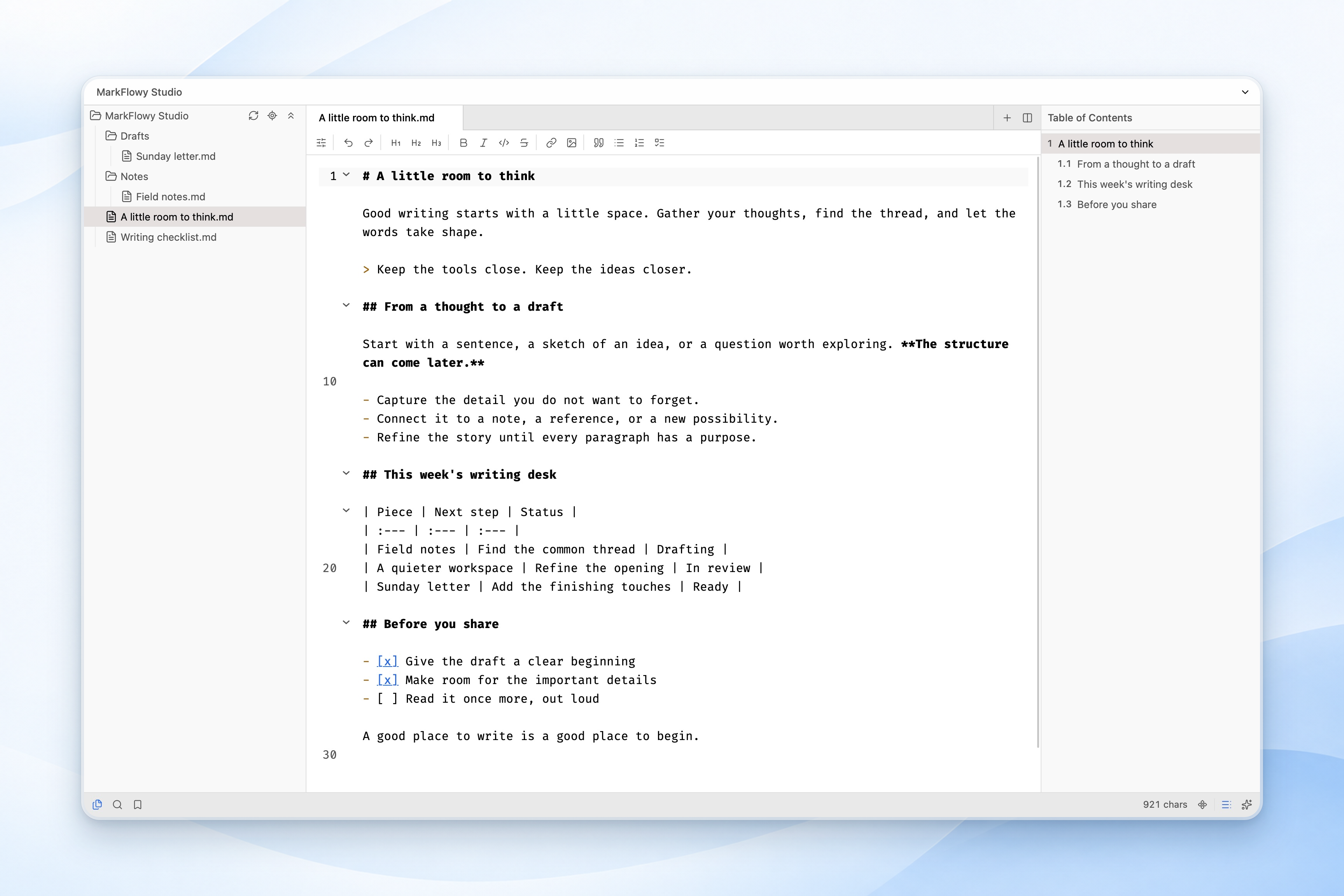
| Source Code | Edit the Markdown text directly, including its syntax and whitespace. |
| Preview | Read the rendered document without editing it. |
Cmd/Ctrl + Shift + M switches between visual and source editing when the editor is focused. Source mode is useful when reviewing syntax-sensitive content or moving documents between Markdown tools.
In visual editing, type / to insert a block. Select text for the formatting toolbar, or use the block handle and Convert to menu (Cmd/Ctrl + Shift + X) to change a supported block type. Code, math, and Mermaid blocks can use saved snippets.
Move through your workspace
- Quick Open: press Cmd/Ctrl + P, type part of a filename or relative path, then use the arrow keys and Enter.
- Commands: press Cmd/Ctrl + Shift + P and search for an action, including local history and editor commands.
- Search: open the search panel for workspace results. Use Cmd/Ctrl + F in the active editor for document find and replace.
- Outline and bookmarks: use the status bar to open the document outline or bookmarks. Focus Active File reveals the current document in the file tree.
- Tabs and splits: drag tabs to reorder them or move them between editor groups. Use the split button for a right-hand pane; hold Alt to split below.
- Focus: use Cmd/Ctrl + Shift + F for Zen mode. Drag the sidebar dividers to adjust their widths.
Saving, local history, and external changes
Use More → Local history to inspect earlier versions and compare changes before restoring. Settings → Local History controls retention and storage. History is local to the application; keep your own backups as well.
Saved drafts can restore unsaved documents and edits after a normal app exit or window reload. Reopen the corresponding workspace to recover them. Continue saving your files and keeping independent backups.
If another application changes a clean open file, MarkFlowy reloads it. If both the editor and the disk have changes, review the conflict: Update loads the disk version, while Overwrite writes the editor version. Check which copy you want to keep before choosing.
Appearance and writing preferences
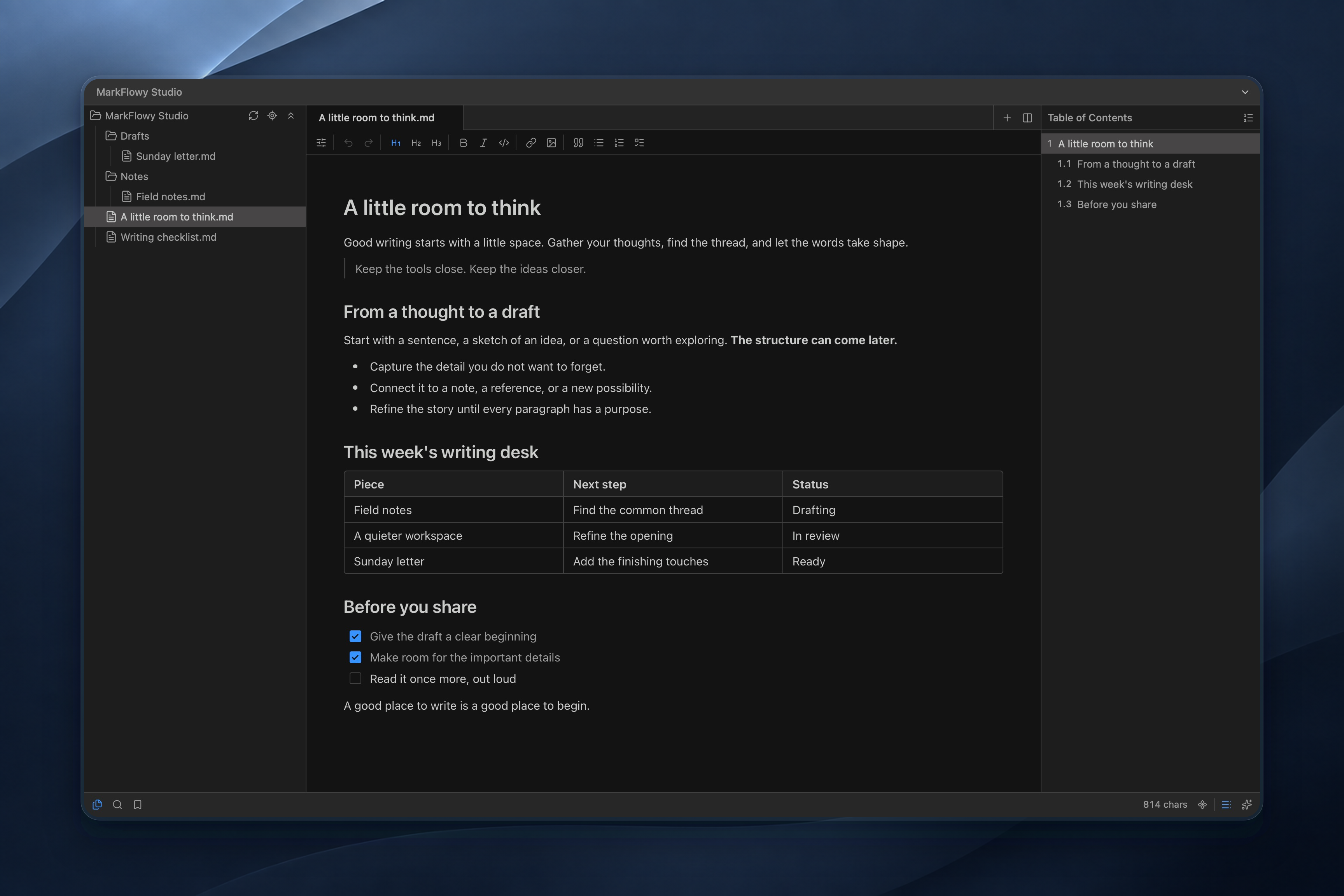
Choose the theme mode in Settings → Appearance. Open Theme Store to create, copy, edit, import, or export a JSON theme. The theme guide includes migration steps for older JS/npm themes, which are no longer loaded.
Editor settings include typography, full-width layout, code wrapping, and caret motion. Text direction can be Auto, Left to right, or Right to left, with per-document overrides in More → Text direction. The direction setting affects document text; Markdown source and code remain left to right.
Optional AI
Open Settings → AI to configure a provider, then use Chat AI in the right sidebar. Available integrations include OpenAI-compatible services, DeepSeek, Google, and Ollama. Choose your model and document context for chat, summaries, or translation. Enable and configure Copilot separately for writing completions.
The chosen provider receives the conversation and attached context; Copilot uses text around the cursor. Local inference requires both a local Ollama endpoint and a downloaded local model. A cloud model or remote endpoint sends requests to that service. See Ollama and Copilot setup.
Error reporting is a separate preference under Settings → General and is off by default.
Export and share
| Destination | Entry point |
|---|---|
| HTML or image | More → Export in a Markdown document. |
| More → Export → PDF, then use the system print dialog. | |
| DOCX, ODT, EPUB | Install Pandoc, configure it in Settings → Export, then choose Export with Pandoc. |
| Local automation | Use the CLI and official Skill for local file operations and exports. |
Export availability depends on the current file type and mode. To export a PDF, choose Save as PDF in the system print dialog.
Useful default shortcuts
| Action | macOS | Windows / Linux |
|---|---|---|
| Quick Open | Cmd + P | Ctrl + P |
| Command palette | Cmd + Shift + P | Ctrl + Shift + P |
| Open folder | Cmd + Shift + O | Ctrl + Shift + O |
| Save | Cmd + S | Ctrl + S |
| Find in active editor | Cmd + F | Ctrl + F |
| Visual / source editing | Cmd + Shift + M | Ctrl + Shift + M |
| Zen mode | Cmd + Shift + F | Ctrl + Shift + F |
| Settings | Cmd + , | Ctrl + , |
Search, record, remove, or restore bindings in Settings → Keyboard Shortcuts. Custom bindings replace the defaults shown here.
Desktop, Web, and performance
The Web App Beta is a separate browser workspace with its own storage and authentication behavior. The local file, native export, and screenshot examples in this guide refer to Desktop.
MarkFlowy optimizes loading and rendering for large Markdown documents, making long-form writing more responsive.
MarkFlowy uses Tauri and the system WebView. Package sizes vary by platform and installer; the Windows offline installer includes WebView2.
Upgrading and getting help
Before moving an existing collection from an older version, keep a backup and check representative tables, links, images, formulas, and saved Markdown. The editor was rebuilt during the 0.100 series. Custom themes now use declarative JSON; follow the theme migration guide for legacy themes.
See the release notes, contributor guide, and issue tracker. For a bug report, include your app version, OS, editing mode, and a small reproducible example.
Download
Available for Windows, macOS and Linux, from the latest release.
Windows
Download and run one of the x64 builds:
MarkFlowy_v<version>_x64-setup.exeorMarkFlowy_v<version>_x64.msi— installer.MarkFlowy_v<version>_offline_installer_x64-setup.exe/.msi— same, with the WebView2 runtime bundled.MarkFlowy_v<version>_x64_portable.zip— unpack and run, no installation.
macOS
Download MarkFlowy_v<version>_aarch64.dmg (Apple silicon) or MarkFlowy_v<version>_x64.dmg (Intel).
If macOS blocks a trusted download from the official release page, follow Apple’s Open Anyway instructions in System Settings → Privacy & Security.
Linux
x86_64 only for now.
Flatpak
flatpak remote-add --if-not-exists flatpark https://dl.flatpark.org/flatpark.flatpakrepo
flatpak install flatpark io.github.drl990114.MarkFlowy
Install script
Installs the .deb or .rpm for your distribution, or the AppImage if it is not recognized:
curl -fsSL https://raw.githubusercontent.com/drl990114/MarkFlowy/main/scripts/install-linux.sh -o install-linux.sh
sh install-linux.sh
Use wget -O install-linux.sh <url> if curl is unavailable. Add --appimage to force the AppImage, or --uninstall to remove MarkFlowy.